Dropls
RUDownload

ANDROID · MAC · WINDOWS

Dropls
Drop it. Please.

Send files between Android, macOS and Windows. Drop a file onto a device, or let Dropls take care of it automatically.

Fewer steps. More life.

Dropls Demo
Nearby devicesPick a sample file and tap a device
Android
MacBook
Windows
Pick a file
This demo uses a sample file

YOUR FIRST TRANSFER

Send a file in three steps.

  1. Open Dropls

    Connect both devices to the same local network.

  2. Choose your files

    On Mac and Windows, drag files straight onto a device bubble.

  3. Tap a device

    On your first transfer, check that the code matches on both screens.

FEATURES

What Dropls can do for you

Send a folder in one transfer

On Mac or Windows, drop a folder onto the recipient’s bubble. Dropls sends every file, subfolder and empty folder together, with one progress bar.

Project folder
One transfer
Folder received
Automatic folder backup

Keep a copy of your working folder on another device. When you add or edit files, Dropls sends the changes from your Mac or Windows PC to a paired device.

How to set it up Open Auto-transfer in Settings and choose a folder and recipient. Confirm the backup location on the receiving device.

Working folder
New and changed files
Backup copy

Android camera auto-upload

Turn on camera auto-upload on Android and choose a paired computer. Dropls automatically sends new photos and videos in the background when the computer is reachable on your local network.

What’s next Set up an agent to watch the receive folder and prepare footage for editing, for example by sorting clips by shoot.

Shot on Android
Background transfer
Footage on computer

Send files through your agent

Dropls for macOS and Windows has a built-in local MCP server. An agent can send the files and folders you choose to a paired device without opening the app window.

  1. Your request
  2. Agent
  3. Dropls via MCP
  4. Device on your network

How to connectEnable MCP control in Dropls Settings, copy the configuration and add it to an MCP client such as Codex.

What to ask

“Send the selected Budget.pdf file to my paired MacBook.”
“Send the Export folder to my paired Windows PC and tell me when delivery is confirmed.”

From the creator’s workflow I build apps on my Mac and test them on Android and Windows.

“Build the Android app. Once the build succeeds, send the APK to my paired test phone through Dropls and let me know when it arrives.”

For Windows, you can send the finished EXE to a paired test PC the same way.

The agent finds the paired device, starts the transfer and checks the result. Pair new devices in Dropls first.

Send directly over your network

Dropls sends original files over an encrypted connection. See speed and duration in the notification and find files in your history.

How your router affects speed

From the Dropls creator’s experience

Wi-Fi 5TP-Link Archer C24
6.3 MB/sduring a file transfer
Wi-Fi 7Tenda BE12 Pro
30 MB/son average, occasionally up to 70 MB/s

Speeds depend on your devices, router and network conditions.

THE DROPLS INTERFACE

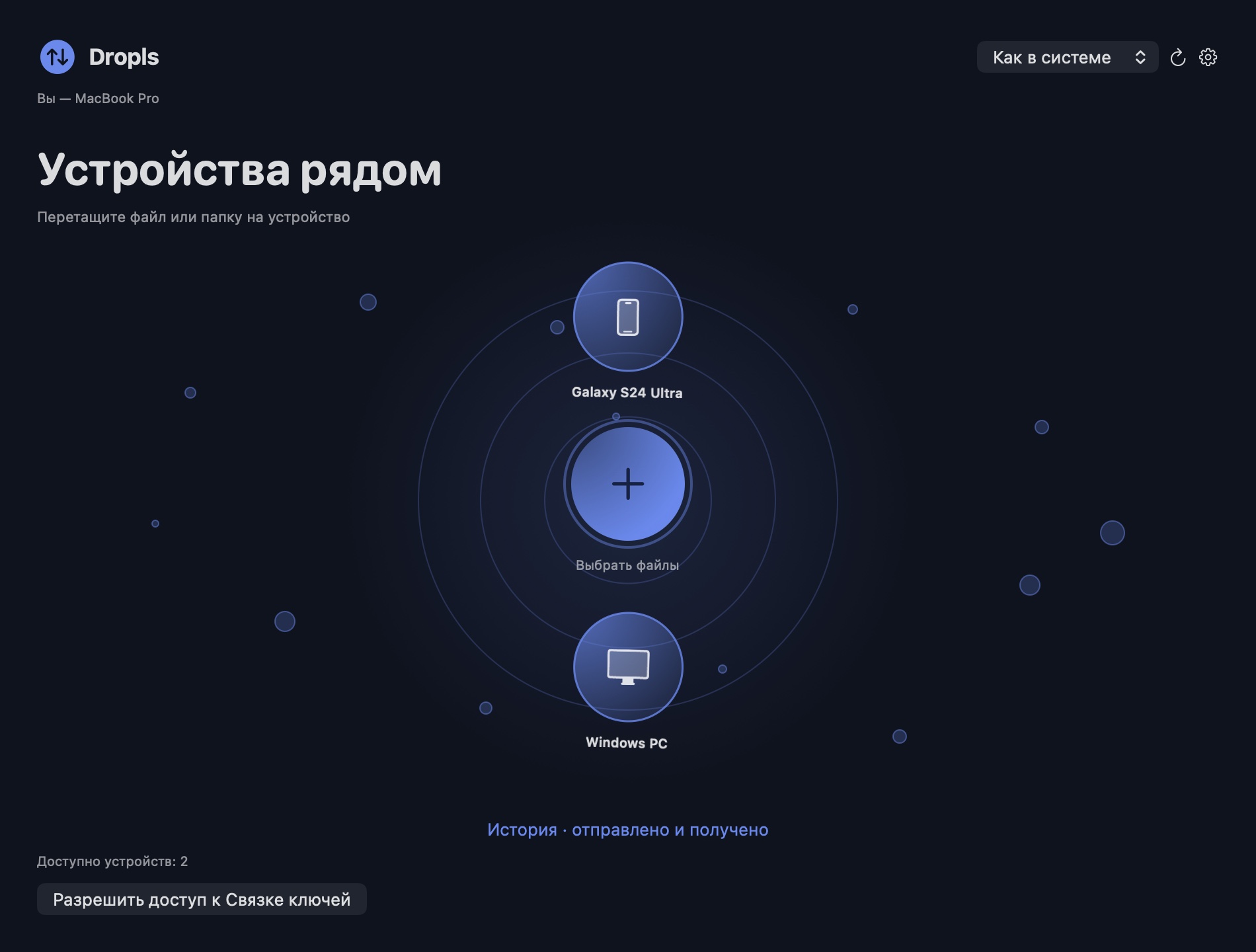
See your devices at a glance.

EVERYDAY USE

Fewer steps in your day.

Photos and video

Shoot on Android and send the originals to your Mac for editing.

Work and study

Move a presentation or project folder to a nearby computer.

At home

Save family photos to your computer and send a copy to another device.

DROPLS

Download and open Dropls
on both devices.

Android 10+ · macOS 13+ on Apple silicon · Windows 10/11 x64

All files in Google Drive

Android 0.9.3 (APK) · macOS 0.9.3 (DMG) · Windows 0.9.5 (EXE)

FEEDBACK

Contact the creator.

Found a problem or have an idea for Dropls?

@beloshapkins ↗
Review your draft and send it in the chat.